
Chạy app android trên Windows 11 với Windows Subsystem
Cài đặt Windows Subsystem for Android thủ công để chạy Android trên Windows 11
Chạy ứng dụng Android trên Windows 11 Dev Channel bằng cách cài đặt Windows Subsystem for Android theo cách thủ công với file Msixbundle
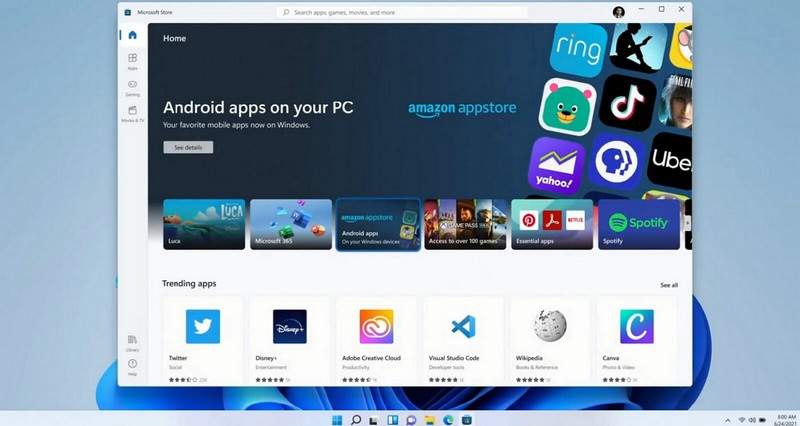
Bước 1: Tải xuống file Windows Subsystem for Android Msixbundle
Truy cập liên kết bên dưới để tải xuống tệp Msixbundle cho Windows Subsystem for Android.
Nhấp vào liên kết bên dưới để tải file Msixbundle cho Windows Subsystem for Android với dung lượng 1.20GB
https://drive.google.com/file/d/1ZgHzxklHzBt5-YbBcMv5APAzfXlheN0P/view
https://www.mediafire.com/file/vrreka2oyuh3h4r/MicrosoftCorporationII.WindowsSubsystemForAndroid_1.7.32815.0_neutral___8wekyb3d8bbwe.Msixbundle/file
Bước 2: Cài đặt Windows Subsystem for Android Msixbundle
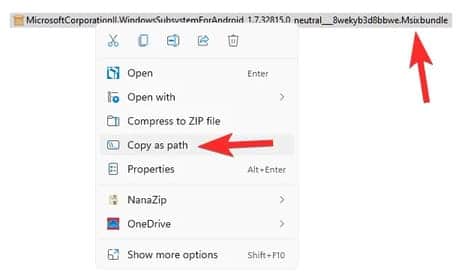
Sao chép đường dẫn của file Msixbundle. Mở thư mục lưu file vừa tải xuống. Nhấp chuột phải vào file và chọn “Copy as path”.
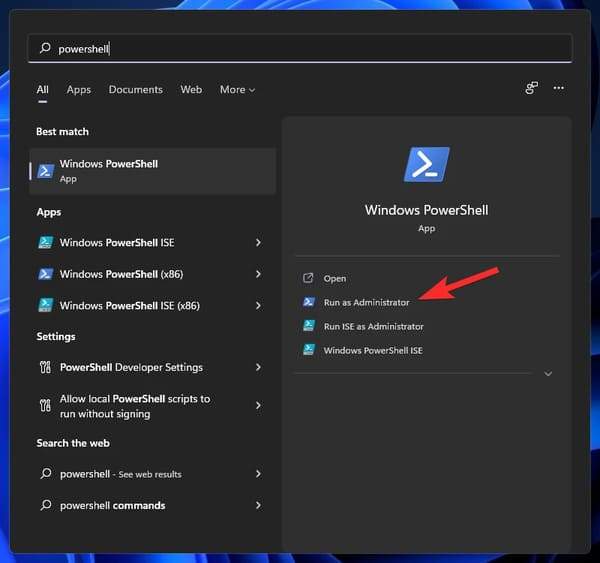
Mở Powershell bằng nhấn nút Windows rồi nhập Powershell và chọn Run as administrator.
Trong Powershell, nhập lệnh sau:
Add-AppxPackage -path "path-of-the-file-comes-here"
Giải thích lệnh trên:
- Bạn có thể dán đường dẫn của file vừa sao chép vào chỗ
path-of-the-file-comes-here. - Không xóa dấu nháy kép xung quanh tên tệp.
- Nếu đường dẫn tệp của bạn là:
C:\Users\AnonyViet\Downloads\1quick\12\MicrosoftCorporationII.WindowsSubsystemForAndroid_1.7.32815.0_neutral___8wekyb3d - Vậy lệnh của chúng ta sẽ là:
Add-AppxPackage -path “C:\Users\AnonyViet\Downloads\1quick\12\MicrosoftCorporationII.WindowsSubsystemForAndroid_1.7.32815.0_neutral___8wekyb3d"
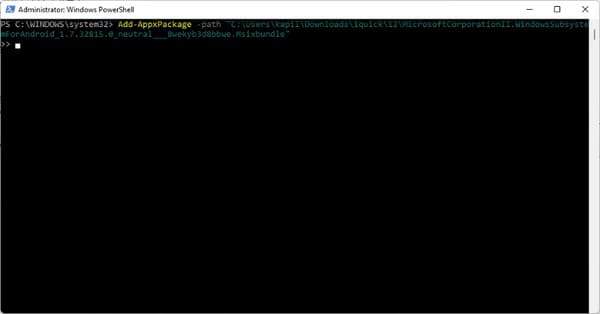
Nhấn phím Enter để chạy lệnh.
Bạn sẽ nhận được thông báo “Deployment operation progress” và khi hoàn tất, Windows Subsystem for Android sẽ được cài đặt trên PC của bạn với kênh Windows 11 Dev.
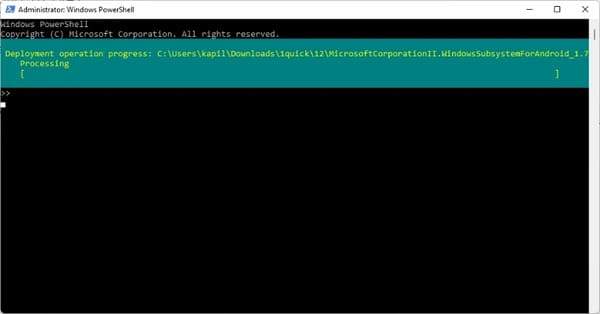
Khi hoàn tất, gõ Exit và sau đó nhấn Enter để thoát Powershell.
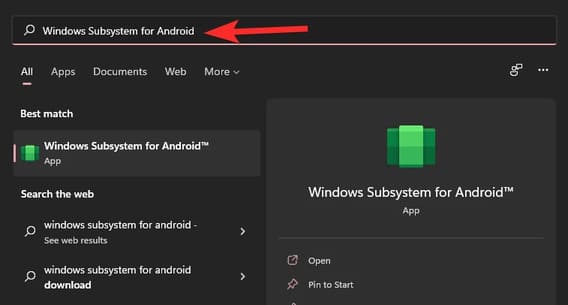
Để mở Windows Subsystem for Android và chạy các ứng dụng Android, hãy nhấn phím Windows và tìm kiếm Windows Subsystem for Android.
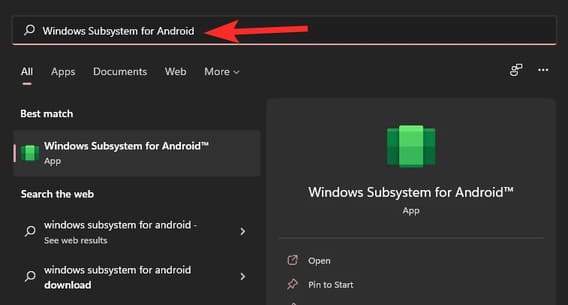
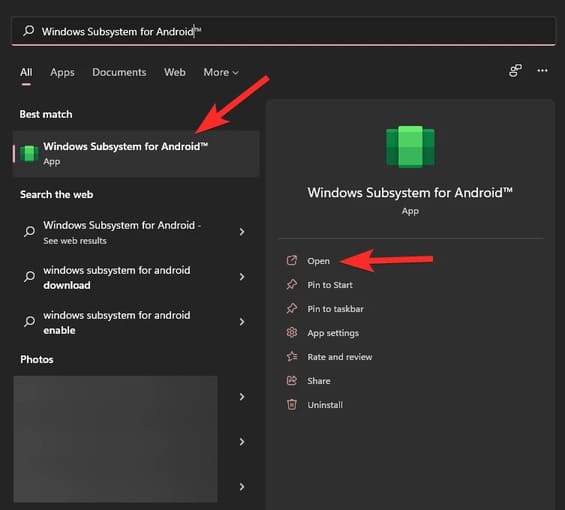
Chọn Windows Subsystem for Android. Hoặc nhấn Open.
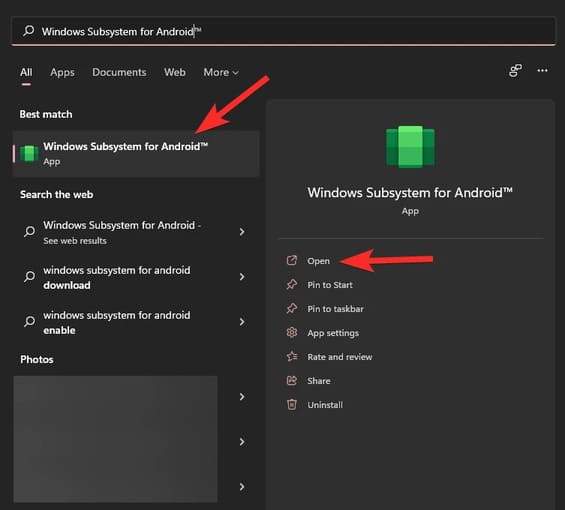
Giờ đây, bạn có thể chạy các ứng dụng Android trên kênh Windows 11 Dev của mình rồi đó.
Cách khắc phục lỗi không thể sử dụng Windows Subsystem for Android
Sửa lỗi “Virtual Machine Platform can not be found“
Đây là một lỗi phổ biến và nó chỉ đơn giản là bạn đang thiếu một trong các tính năng bổ sung của Windows. Bạn chỉ cần làm theo hướng dẫn bên dưới là được.
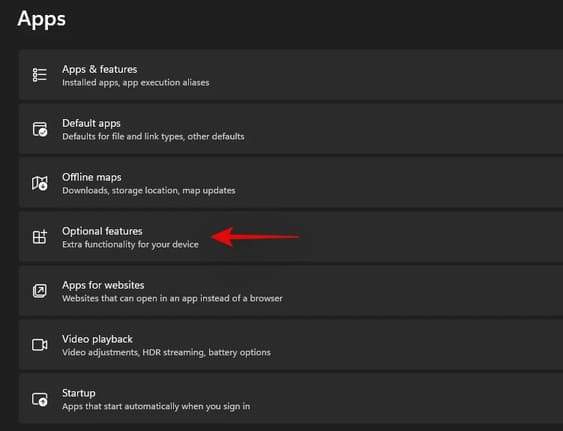
Nhấn Windows + i để mở ứng dụng Settings và chọn ‘Apps’ từ menu bên trái.
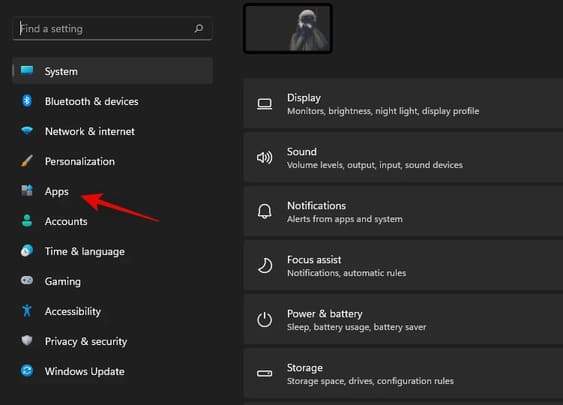
Nhấn “Optional features”.
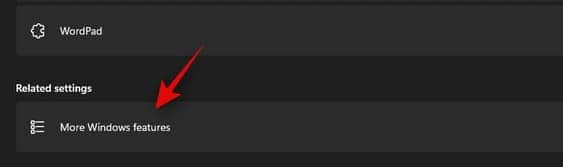
Nhấn “More Windows features” ở dưới cùng.
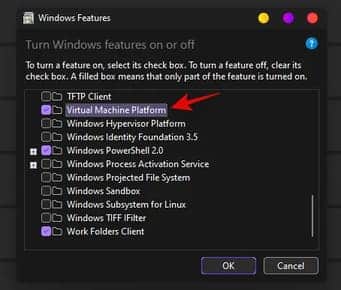
Tìm “Virtual Machine Platform” trong danh sách này và chọn ô vuông bên trái.
Bây giờ hãy nhấp vào ‘Ok’.
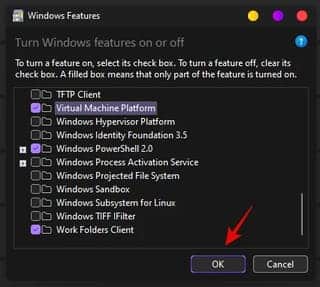
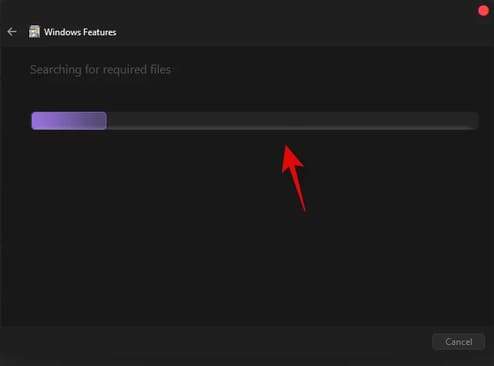
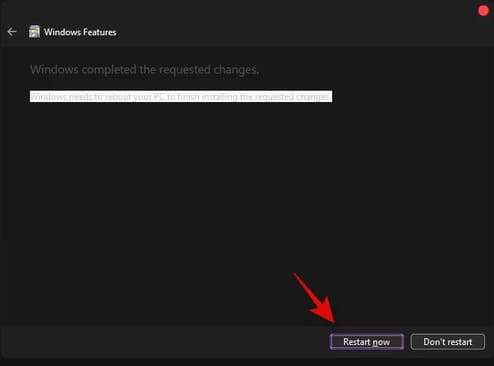
Tính năng này sẽ được cài đặt trên PC của bạn. Sau khi cài đặt, bạn sẽ được nhắc khởi động lại PC. Bạn nên khởi động lại PC của mình tại thời điểm này.
Nhấn “Restart Now” để khởi động lại PC.
Sau khi hệ thống của bạn khởi động lại, Windows Subsystem for Android sẽ được thiết lập và chạy trên máy tính của bạn.
Cách cài file APK bằng Windows Subsystem for Android
Bước 1: Bật chế độ Developer trong Windows Subsystem
Trước tiên, hãy mở Windows Subsystem for Android bằng cách nhấn phím Windows và tìm Windows Subsystem for Android.
Nhấp vào Windows Subsystem for Android. Hoặc nhấn Open.
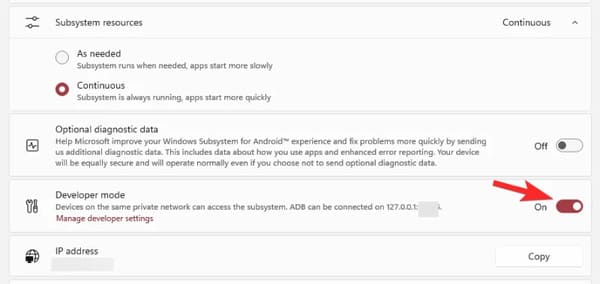
Trong Windows Subsystem for Android, bật chế độ Developer.
Bước 2: Cài đặt SDK Platform Tools
Truy cập trang SDK Platform Tools của google tại đây.
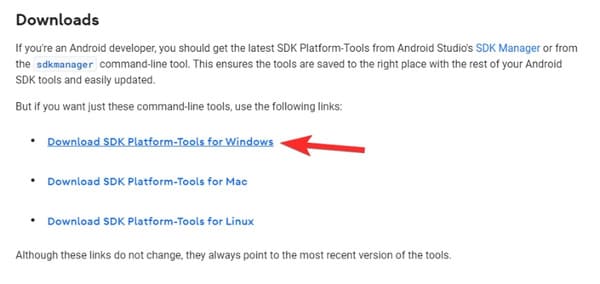
Nhấn Download SDK Platform-Tools for Windows.
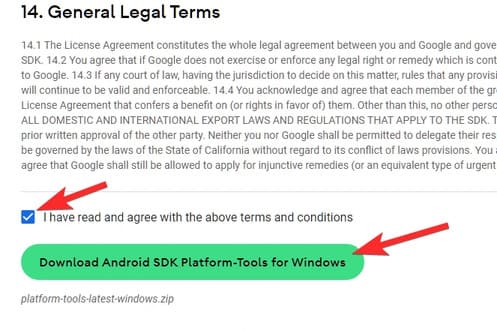
Cuộn xuống và đồng ý với các chính sách điều khoản. Sau đó nhấp vào nút màu xanh lá để tải Platform Tools.
File zip có tên platform-tools_r31.0.3-windows sẽ được tải xuống PC của bạn.
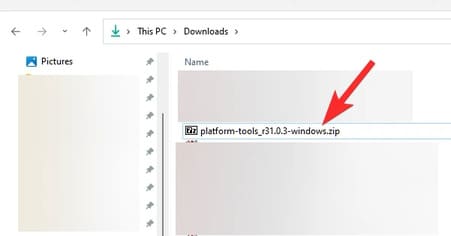
Bạn nên tạo 1 thư mục mới và chuyển file vừa tải vào thư mục đó cho dễ thao tác hơn.
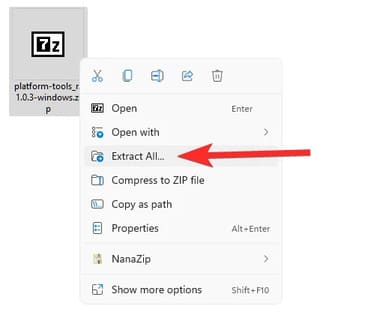
Nhấp chuột phải vào file đó và chọn Extract all.
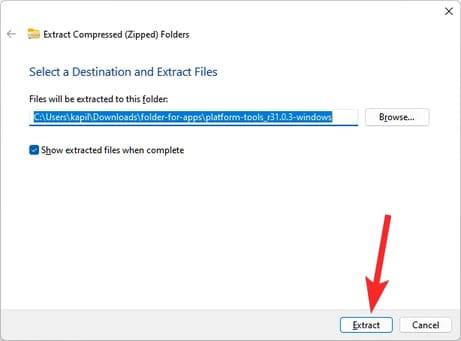
Nhấp vào Extract.
Tập tin sẽ được giải nén. Mở thư mục platform tools.
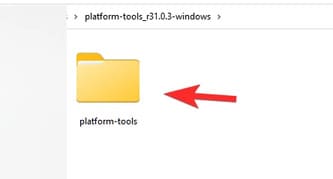
Bạn sẽ thấy file adb.exe và một số file khác ở đây.
Bước 3: Cài đặt ứng dụng Android
Tiếp theo, mở thư mục platform-tools.
Tại đây, nhấp vào thanh địa chỉ và nhập cmd, sau đó nhấn enter.
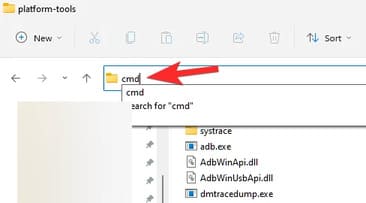
Cửa sổ lệnh sẽ mở ra với vị trí là thư mục platform-tools.
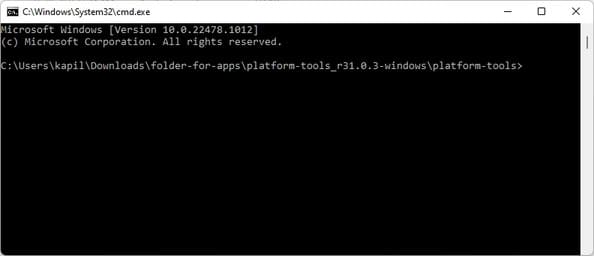
Chúng ta đã truy cập thư mục platform-tools bằng cmd rồi đó.
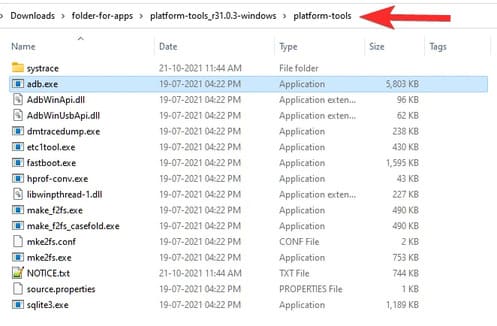
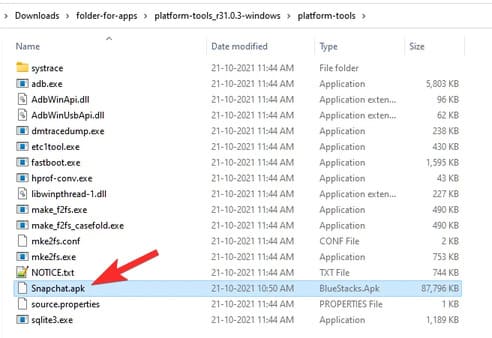
Bây giờ, hãy tải file APK của ứng dụng Android mà bạn muốn cài đặt. Ví dụ: nếu bạn muốn cài đặt Snapchat, hãy tìm kiếm APK Snapchat trên Google và tải file APK của nó. Tiếp theo, đổi tên tệp thành tên đơn giản hơn như snapchat.apk. Bây giờ, chuyển file snapchat.apk vào thư mục platform-tools.
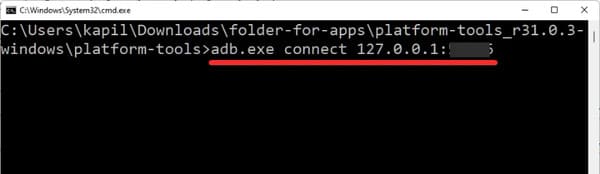
Sau đó, mở Windows Subsystem for Android và tìm IP nơi nó có thể kết nối với ADB trong Developer.
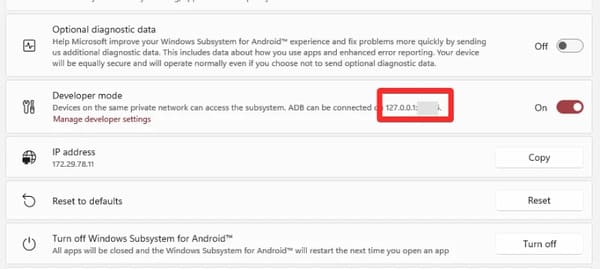
Trong cmd, hãy nhập lệnh bên dưới và nhấn Enter:
adb.exe connect (ip-address)
Ví dụ: adb.exe connect 127.0.0.1:12345
Bây giờ, hãy nhập lệnh cài đặt bên dưới và nhấn Enter:
adb.exe install (apk-file-name.apk)
Ví dụ: adb.exe install Snapchat.apk
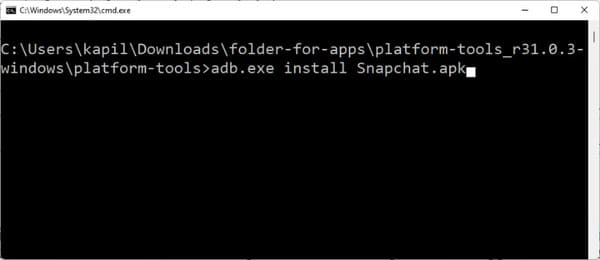
Ứng dụng Android sẽ được cài đặt trên PC của bạn bằng ADB và file APK mà bạn đã cung cấp.
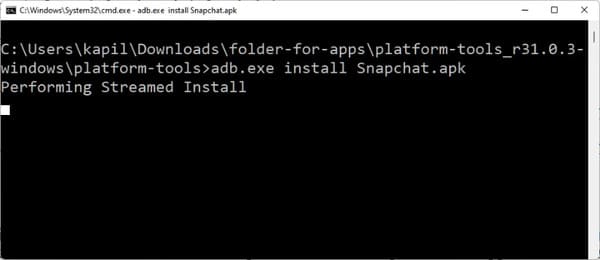
Khi hoàn tất, bạn sẽ thấy thông báo Success.
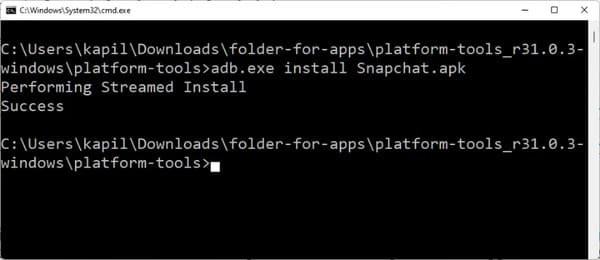
Bạn có thể đóng cửa sổ CMD rồi đó.
Bây giờ bạn có thể mở ứng dụng Android trên PC của mình.
Nhấn phím Windows rồi nhập tên ứng dụng của bạn.
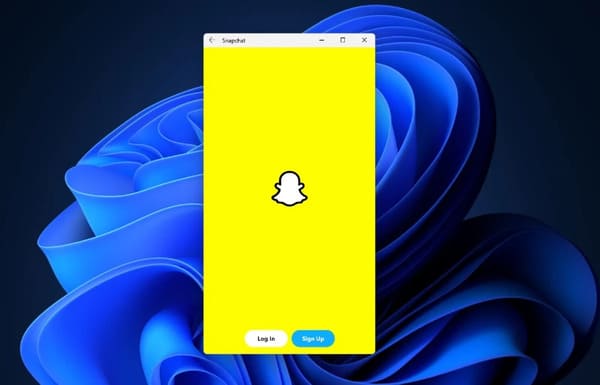
Vậy là bạn đã cài đặt file APK Android trên Windows 11 thành công rồi đó.